Batch files and folders
Create links for multiple files, folders, or a mixture of both in one operation.
Many sources
One destination
Free and open-source Windows utility

Create symbolic links without writing
mklink
commands.
Add multiple source files and folders, choose one destination, and create every link in a single operation.
winget install --id ArnobPaul.SymlinkCreator --exact
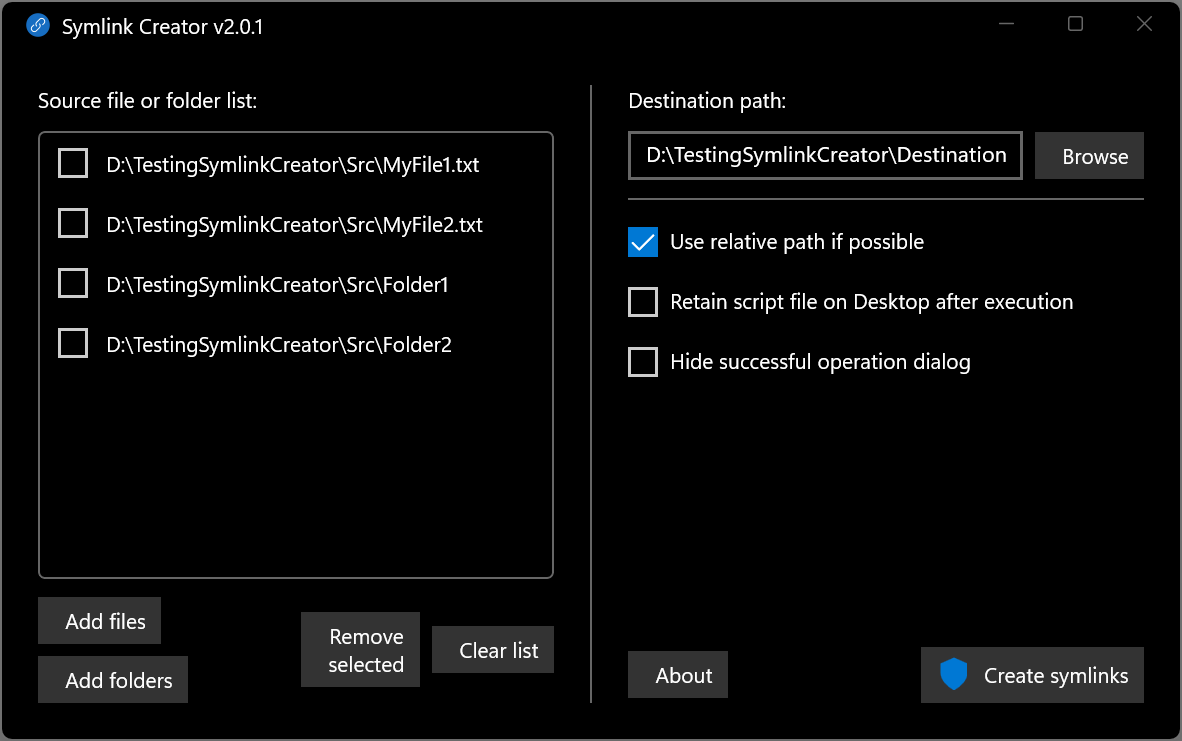
Built for real file workflows
Use familiar Windows interactions while Symlink Creator plans and validates the commands for you.
Create links for multiple files, folders, or a mixture of both in one operation.
Select paths, drag them from File Explorer, or paste a newline-separated list.
Use shorter relative targets on the same drive, or complete absolute paths.
Catch duplicate link names and existing destination entries before any link is created.
Install packages for x64 or native ARM64 Windows PCs.
New to symbolic links?
A Windows symbolic link, or symlink, is a filesystem entry that points to an existing file or folder at another path. Applications can usually open the link as though the target lived there, without duplicating the target's data.
Unlike a Windows shortcut (.lnk), a symbolic link works at the filesystem level. It can keep
moved game or application data available at its original path, organize media without extra copies, or
expose shared development assets where different projects expect them.
Deleting a symbolic link removes the link, not the file or folder it points to.
How it works
Choose the existing files and folders you want to make available somewhere else.
Select one directory where the links should appear.
Review the options and let the app create one link for every source.
Symlink Creator creates symbolic links only. It does not move, copy, or delete your source content.
Install or explore
Choose WinGet for automatic setup, or download a portable ZIP after installing its documented prerequisites.
symlinkcreator command alias.
winget install --id ArnobPaul.SymlinkCreator --exact
Not sure which ZIP to choose? Open Windows Settings → System → About and check System type. Choose x64 for an x64-based processor or ARM64 for an ARM-based processor.
Support open source
Symlink Creator is free and open source. If it saves you time, you can support its continued maintenance.
You can also support the project by starring the repository, sharing feedback, or telling others about Symlink Creator.